



How to Add GloBE Taxpayer Status via Coretax DGT
A GloBE taxpayer is a constituent entity or member of a joint venture group established or domiciled in Indonesia that is a member or part of a multinational enterprise (MNE) group subject to GloBE. See What Is a GloBE Taxpayer?
Pursuant to PER-6/PJ/2026, one of the obligations that must be fulfilled by such a taxpayer is to apply for status addition as a GloBE taxpayer. This obligation must be fulfilled no later than 9 months after the end of the first GloBE imposition year.
Accordingly, if a group first falls within the scope of GloBE in 2025, the status addition must be carried out this month, namely September 2026. The Directorate General of Taxes (DGT) has also provided a feature to add GloBE taxpayer status on coretax. In this article, DDTCNews explains how to add GloBE taxpayer status via coretax.
First, log in to the personal coretax account of the person in charge (PIC) of the GloBE taxpayer. Then, perform an impersonation to the account of the taxpayer being represented. Once the impersonation is successful, select the My Portal menu and the Status Addition as a GloBE Taxpayer sub-menu.
The system will direct you to the GloBE Taxpayer Status Addition form. This form consists of 8 sections, namely: Case Management; Taxpayer's Attorney; Taxpayer's Identity; GloBE Group Information; MNE Group Information; Correspondence Address; Person in Charge; and Taxpayer Declaration.
In the “Case Management” section, the Channel and Application Date fields will be populated automatically by the system. In the “Taxpayer's Attorney” section, the Representative Appointment ID, NIK/TIN of Representative and NIK/TIN of Representative fields will also be populated automatically by the system.
In the “Taxpayer's Identity” section, the Taxpayer's Name, Taxpayer Identification Number, and Taxpayer's Address fields will also be populated automatically by the system. You may therefore scroll down the page to the “GloBE Group Information” section and complete the fields using the following guidance:
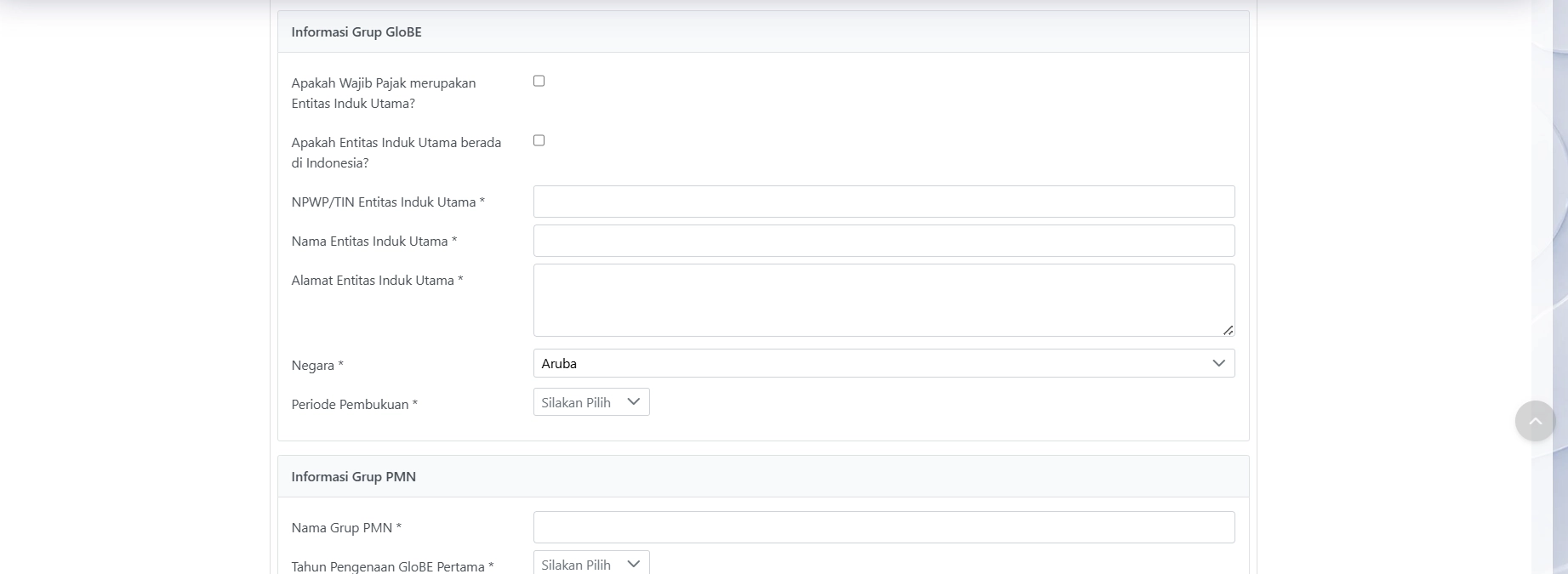
- Is the Taxpayer the Ultimate Parent Entity: tick the available check box if the taxpayer you represent is the ultimate parent entity (UPE):
- If you tick the “Is the Taxpayer the Ultimate Parent Entity” question, the system will display 3 additional fields containing the TIN/NPWP, name, and address of the ultimate parent entity, all of which will be populated automatically by the system;
- If the taxpayer you represent is not the ultimate parent entity, you may tick the “Is the Ultimate Parent Entity domiciled in Indonesia” option. You will then be required to manually enter the TIN/NPWP, name, and address of the ultimate parent entity;
- Country:
- If you tick the “Is the Taxpayer the Ultimate Parent Entity” question, this field will be populated with “Indonesia” automatically by the system;
- If you do not tick the “Is the Taxpayer the Ultimate Parent Entity” question, you must manually enter the country in which the ultimate parent entity is domiciled.
- Bookkeeping Period
- If you tick the “Is the Taxpayer the Ultimate Parent Entity” question, this field will be populated automatically by the system with the bookkeeping period of the taxpayer concerned;
- If you do not tick the “Is the Taxpayer the Ultimate Parent Entity” question, you must manually enter the bookkeeping period of the financial statements of the ultimate parent entity.
In the “MNE Group Information” section, complete the MNE group name field and select the first GloBE imposition year from the available dropdown. In the “Correspondence Address” section, there is a tick option with the text “Same as the registered Taxpayer's address”.
If you tick this option, the correspondence address will be populated automatically by the system with the registered address of the taxpayer submitting the status addition.
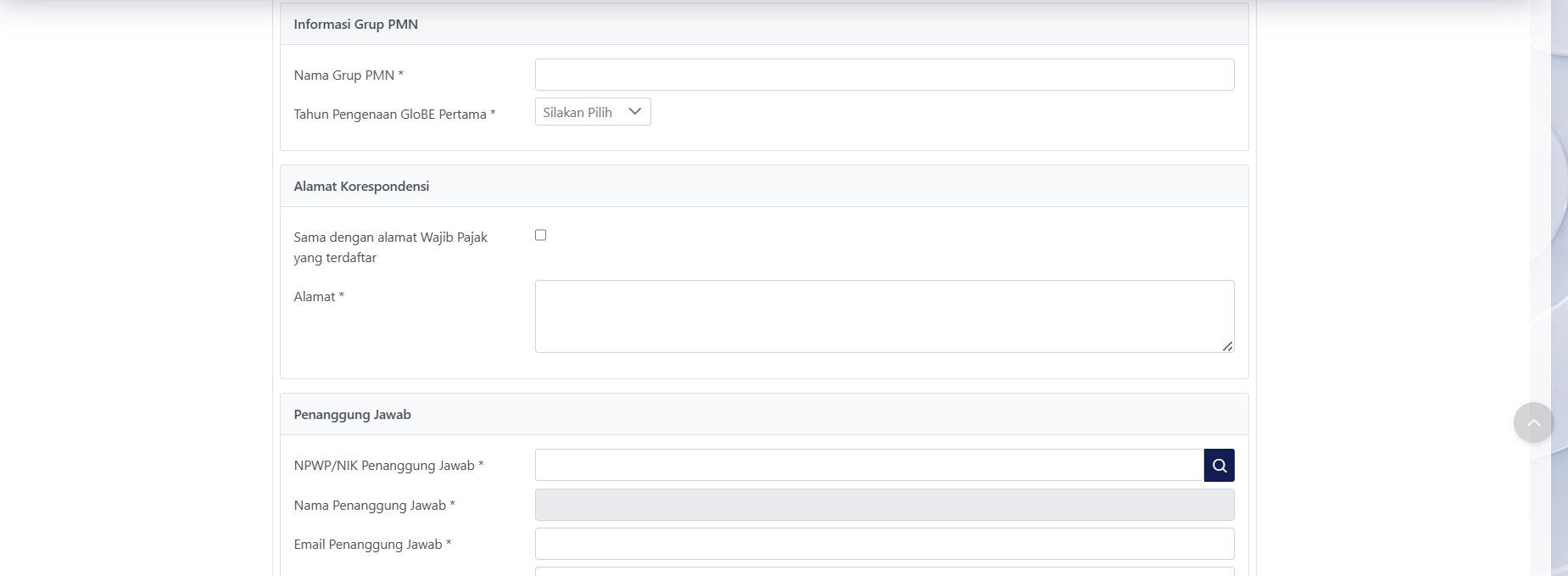
In the “Person in Charge” section, complete the fields using the following guidance:
- NIK/TIN of Person in Charge: enter the NIK/TIN of the party appointed by the MNE Group as the group representative to administer GloBE tax obligations. If the NIK/TIN entered is invalid or not recognised by the system, a notification stating “NIK/TIN not valid” will appear;
- Name of Person in Charge: populated automatically by the system based on the NIK/TIN data entered in the preceding field;
- Email of Person in Charge: enter the electronic mail (email) address of the party appointed by the MNE Group as the group representative to administer GloBE tax obligations;
- Mobile Telephone Number of Person in Charge: enter the telephone/mobile telephone number of the individual appointed by the MNE Group as the group representative to administer GloBE tax obligations.
In the “Taxpayer Declaration” section, read the available declaration and click the check box. Once all fields have been completed, click Save as confirmation of the electronic submission of the taxpayer's application. Once the application has been submitted, the system will generate an electronic receipt and a Notification Letter regarding the Addition of Status as a GloBE Taxpayer to the Taxpayer Account.
You may also check your GloBE taxpayer status in the General Information menu. In addition, you may check the type of global minimum tax obligation in the My Portal menu, My Profile sub-menu and select the Tax Type option. Done. We hope this is helpful. See What Is the Global Minimum Tax?