



How to Generate a Withholding Receipt for Services by an Entity

Fees in connection with services provided to a corporate taxpayer are subject to Article 23 Withholding Tax (WHT). Accordingly, where the service recipient is a withholding agent, they must perform Article 23 WHT on payments made to the service provider.
For example, PT A uses appraisal services from PT X. In respect of the payment for services provided by PT X, PT A must perform Article 23 WHT. In addition, PT A must also prepare a withholding tax receipt (bukti potong/bupot in Indonesian) for that withholding.
Pursuant to the provisions under Article 15 paragraph (1) of PER-11/PJ/2025, the withholding receipt used for Article 23 WHT is the Unified Withholding and/or Collection Receipts (also referred to as BPPU). See What Is the e-Bupot Coretax Module and Its Menus?
DDTCNews will now discuss how to prepare a withholding receipt for income tax on service payments to a corporate taxpayer in coretax.
To begin, open and log in to your Coretax DGT account. If you are representing another taxpayer, please change your access role (impersonating) to that party by selecting the name of the taxpayer you represent.
Next, select the e-Bupot menu and the BPPU sub-menu. Then click the +Create eBupot BPU button. The system will display the “EBUPOT BPU” form. This form consists of 3 sections. First, General Information. In this section, complete the fields using the following guidance:
- Taxable period*: select the taxable period and tax year income tax becomes payable, i.e., the period of the service payment. For example, November 2026;
- Status*: automatically populated by the system (non-editable);
- Taxpayer identification number*: enter the TIN of the service provider;
- Name*: automatically populated by the system (non-editable);
- NITKU*: select the service provider's NITKU from the available dropdown.
Second, Income Tax (IDR). In this section, complete the fields, in particular those marked with an asterisk, using the following guidance:
- Tax Facilities Held by the Income Recipient*: enter the type of facilities held by the service provider. If none apply, select the No Facilities option;
- Name of Taxable Object*: select the applicable service option. For example, “Appraisal Services”;
- Tax Type*: automatically populated by the system (non-editable);
- Taxable Object Code*: automatically populated by the system (non-editable);
- Nature of Income Tax*: automatically populated by the system (non-editable);
- Tax Base (IDR)*: enter the gross amount of the service payment; See No Supporting Evidence, All Services May Face Art. 23 Income Tax
- Rate (%)*: automatically populated by the system (non-editable);
- Income Tax (IDR)*: automatically populated by the system with the amount of income tax due (non-editable);
- KAP*: automatically populated by the system (non-editable);
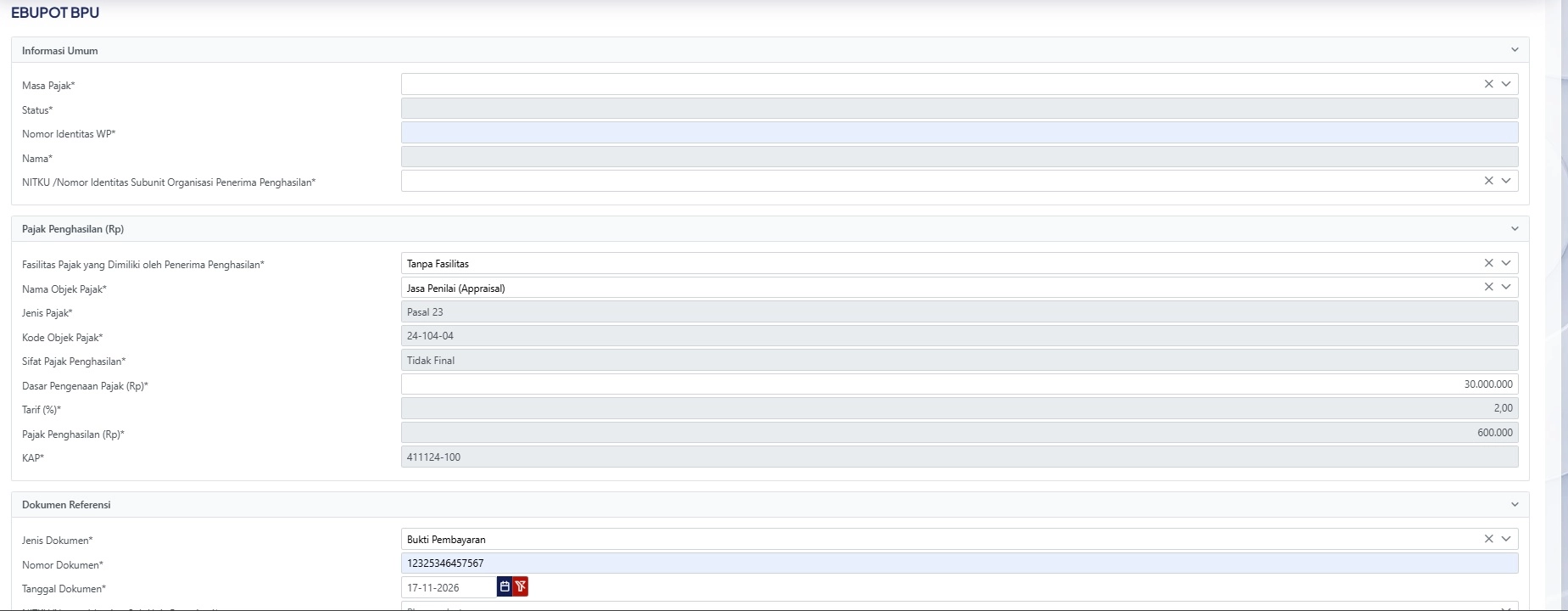
Third, Reference Documents. In this section, you may complete the fields that appear using the following guidance:
- Document Type*: select the document option that forms the basis for issuing the withholding receipt from the available dropdown. For example, proof of payment or other documents;
- Document Number*: enter the reference number of the document that forms the basis for issuing the withholding receipt;
- Document Date*: select the date on which the withholding receipt is created;
- NITKU/Sub-Organisational Unit Identification Number*: select the NITKU of the withholding agent (the service recipient).
Once all fields have been completed, click the Submit button. If successful, the system will display the notification “Success. Save data successfully”. The withholding receipt you have created will also appear in the Not Yet Issued BPPU table.
To issue the withholding receipt, tick the check box next to the relevant receipt and click the Issue button (located at the top of the page). If successful, the withholding receipt you have created will move and appear in the Issued menu. Done. We hope this is helpful. (dik)